

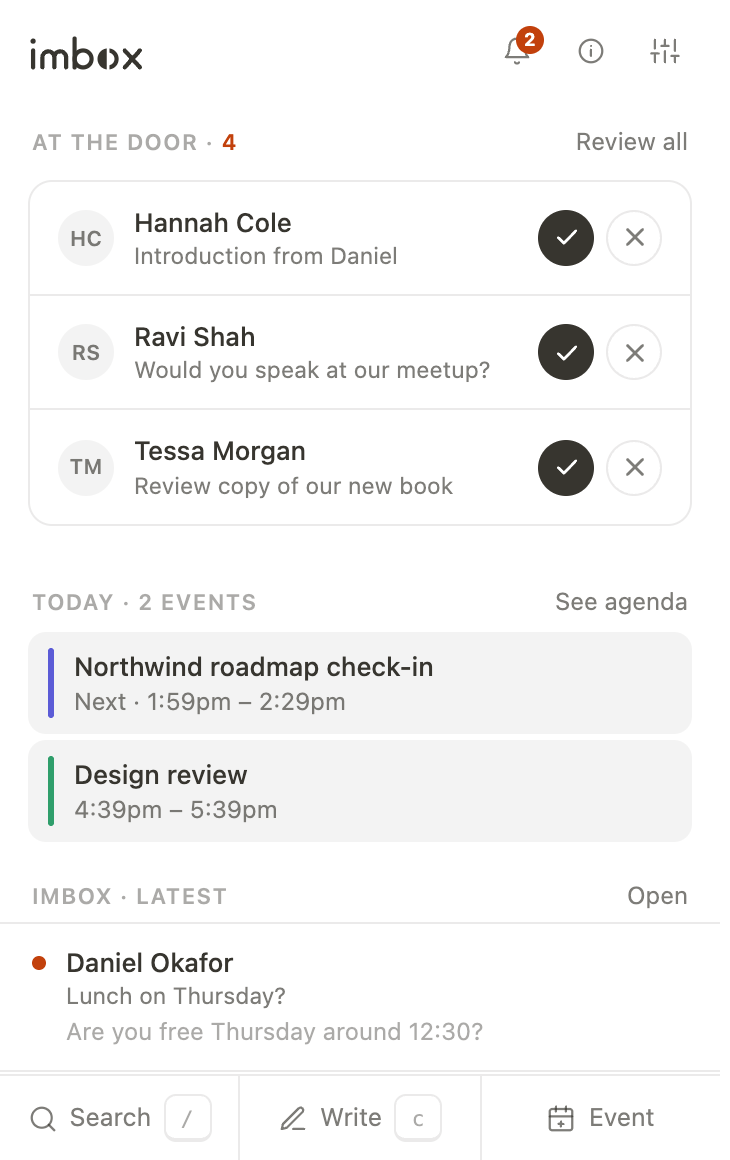
The extension shows how many new senders are waiting in your Screener on the browser toolbar, and lets you decide about them without opening imbox. It works in Chrome, Edge and Firefox.
It talks to your server with its own token. It never gets your password or your session, and it can't read the pages you visit.
What it shows
- The badge. A number is how many senders wait in the Screener. A dash means the extension is not connected yet. An exclamation mark means it can't reach your server. Nothing means no one is waiting.
- The side panel (Chrome and Edge), and the smaller popup when the panel is closed:
- At the door: the next three senders, each with a button to let in or keep out.
- Today: your calendar, with a Join button for video calls.
- Recent Imbox: the latest threads from all your mailboxes.
- Along the bottom: Search, Write, open imbox, and add an event.
- Notices. A system notice when a new sender arrives or mail lands in your Imbox. Choose which in the extension's settings. Clicking one opens that sender in imbox.
- Right-click menu. On an email address or a
mailto:link: write to this address, or show their mail in imbox.
Install
Your server offers the extension as a download on its Apps page. The file is /downloads/imbox-extension.zip. The same code is in the repository under apps/extension.
Chrome and Edge
- Unzip
imbox-extension.zip. - Open
chrome://extensions(oredge://extensions) and turn on Developer mode. - Choose Load unpacked and select the unzipped folder.
Firefox
- Open
about:debugging#/runtime/this-firefox. - Choose Load Temporary Add-on and select
manifest.jsonin the unzipped folder.
Firefox removes a temporary add-on when it closes, so you add it again next time.
Connect it
- In imbox, open Settings → Integrations → Browser extension.
- Name the token, for example
MacBook Chrome, and choose Make a token. - Copy the token. It starts with
imx_and is shown once. - Click the extension icon, enter your server address, such as
https://imbox.example.com, paste the token and choose Connect.
Your browser asks to allow the extension on your server's address only. To disconnect a browser, delete its token in the same place in Settings.
What a token can do
The server accepts only these requests from an extension token. Anything else is refused with 403.
| Request | Used for |
|---|---|
GET /api/counts | The badge and the counts |
GET /api/screener/waiting | The senders at the door |
POST /api/screener/decide | Letting a sender in or keeping them out |
GET /api/imbox/recent | The latest threads |
GET /api/calendar/agenda | Today's events and meeting links |
GET /api/notifications | Unread notices |
POST /api/notifications/seen | Marking notices as seen |
Tokens are stored as a SHA-256 hash, so a copy of the database does not give anyone a working token.
If it does not work
- A dash on the badge: it is not connected. Do the steps under Connect it.
- An exclamation mark: check the server address, and that the site opens in the browser. A revoked token also shows this. Make a new one.
- No notices: check the browser allows notices from the extension, and that they are switched on in its settings.