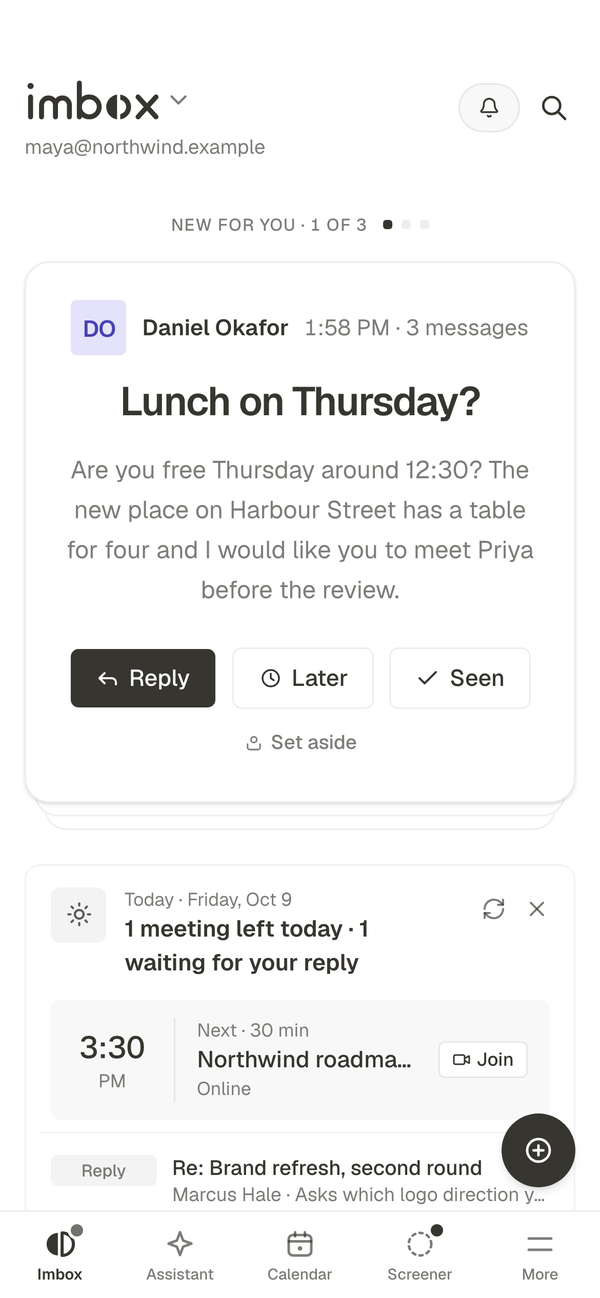

This page picks up where Install ends. imbox is running and answering at your address. You will make the owner account, protect it, and connect a mailbox.
1. Make the owner account
- Open your address (for example
https://imbox.example.com) in a browser. If it does not open, see Troubleshooting. imbox sends you to/signup. - Enter your email address and a strong password. This creates the single Owner account.
- Once created,
/signupis permanently locked. All subsequent visits use/login.
Tip
Go immediately to Settings → Security and enable Two-factor authentication (TOTP) or register a Passkey. Save the 10 emergency recovery codes in a safe place.
2. Connect your first mailbox
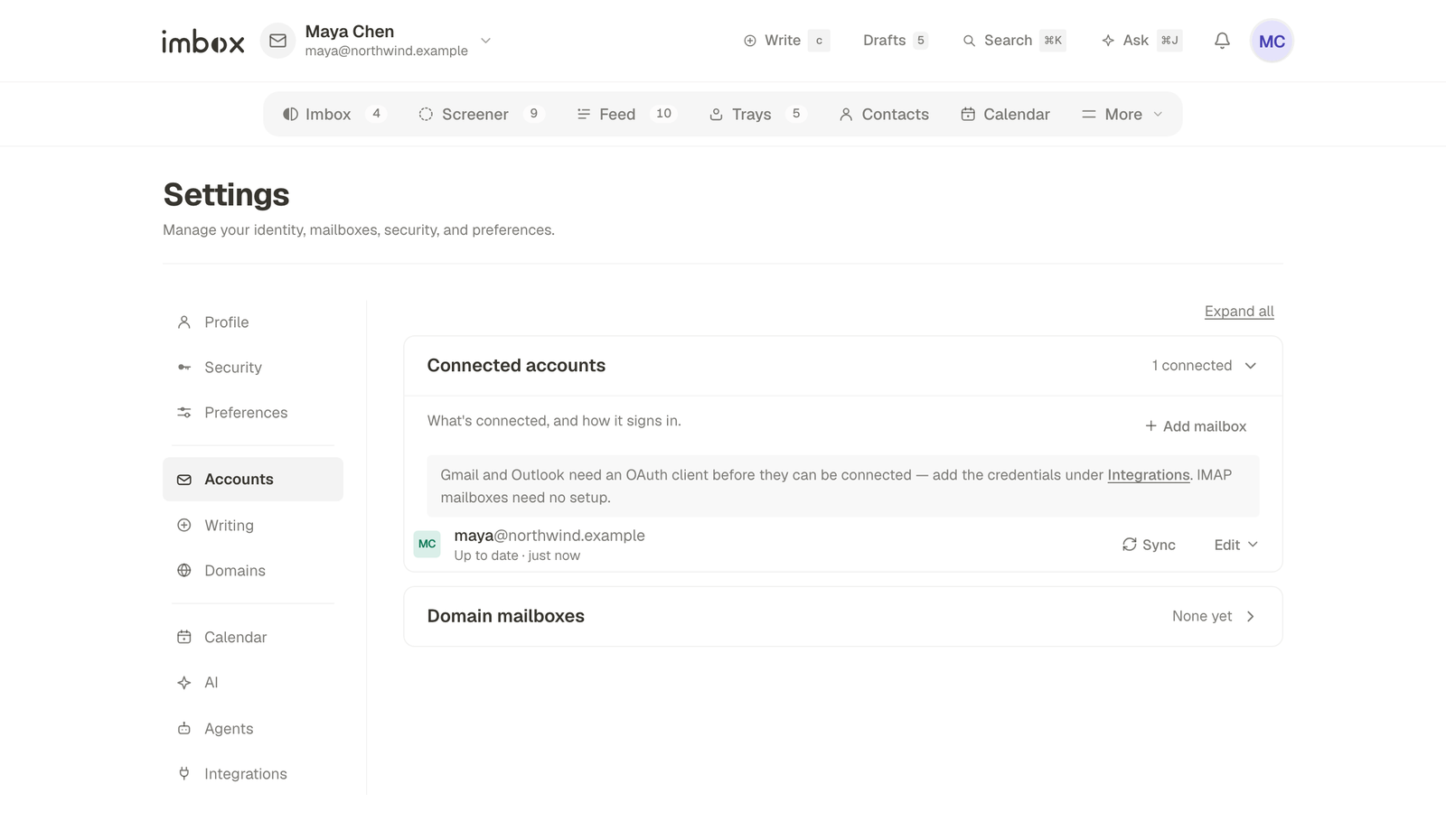
Navigate to Settings → Accounts:
- Any IMAP Provider (Fastmail, Zoho, iCloud, custom server): Click Add mailbox. Enter your email, IMAP/SMTP server addresses, and an app password. Imbox connects and validates credentials in real-time before saving.
- Gmail & Google Workspace: Click Connect Gmail. Follow the one-time Google OAuth setup.
- Outlook & Microsoft 365: Click Connect Outlook. Follow the one-time Microsoft Graph setup.
- Custom Domain via Stalwart: Pair your self-hosted Stalwart mail server under Settings → Domains. See the Stalwart guide.
Note
Connecting a mailbox imports nothing from the past by default. Imbox notes where the mailbox stands and processes incoming messages from that moment forward, keeping your Imbox quiet. If you want recent history, choose an import batch size (up to 200 messages) during connection or use Re-sync later.
3. Meet the Screener
Send yourself a test message from an outside account, then open the Screener tab:
- First-time senders wait in the Screener. They do not land in your Imbox until you decide about them.
- Choose Let in (or press
y) and pick where their mail goes: the Imbox, Reading or Receipts. - Choose Screen out (or press
n) to drop their mail quietly from now on.
The whole story is in The Screener, and Imbox, Feed and Receipts shows where mail lands after that.
4. Next
- Install the browser extension: View your Screener queue and triage incoming senders from any tab. See Browser extension.
- Add to your phone: The phone has its own layout, made for thumbs. Open your Imbox URL on iOS Safari or Android Chrome, tap Share → Add to Home Screen for the standalone mobile layout.
- Turn on the AI Assistant: Bring your own Anthropic, OpenAI, or local model key for automated drafting and daily briefs. See AI guide.
- If something does not work: Troubleshooting has the fix for the common problems.
- Check your backups: The server makes one every night. Copy them off the machine too. See Backups and restore.