

After the Screener, mail from a sender goes to one of three places. Each has a different job, so a newsletter never sits between you and a message from a person.
| Place | What goes there | Where you find it |
|---|---|---|
| Imbox | Mail from people you let in | The Imbox tab, the home page |
| Reading | Newsletters and articles | The Feed tab |
| Receipts and alerts | Confirmations, invoices, notices | The Feed tab, in its own card |
Reading and Receipts share one page, Feed, because both are mail you go through in a batch, not one by one.
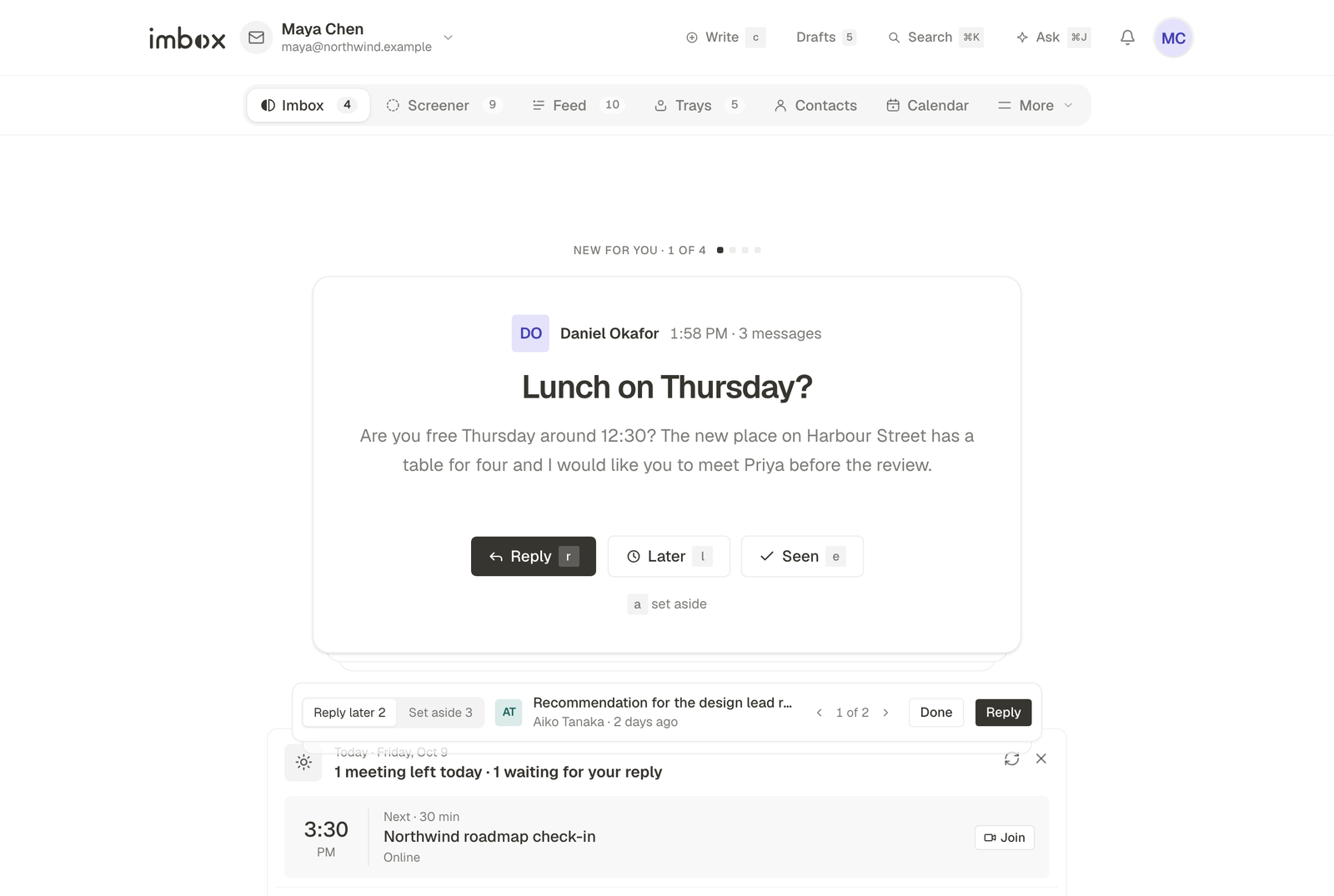
The Imbox
The Imbox shows what is new for you, one message at a time, under the heading New for you, with your place in the list ("1 of 6").
For the message in front of you:
- Reply (
r) opens the thread to answer. - Reply later (
l) moves it to a tray and brings up the next one. - Done (
e) marks it seen and brings up the next one. - Set aside (
a) keeps it close at hand. On a phone it is a button under the others.
When you reach the end the page says Nothing new. It adds how many you read today and, if your calendar is connected, your next meeting.
Mail you have already dealt with is not lost. Previously Seen and Everything are under More, in the group "Browse all mail".
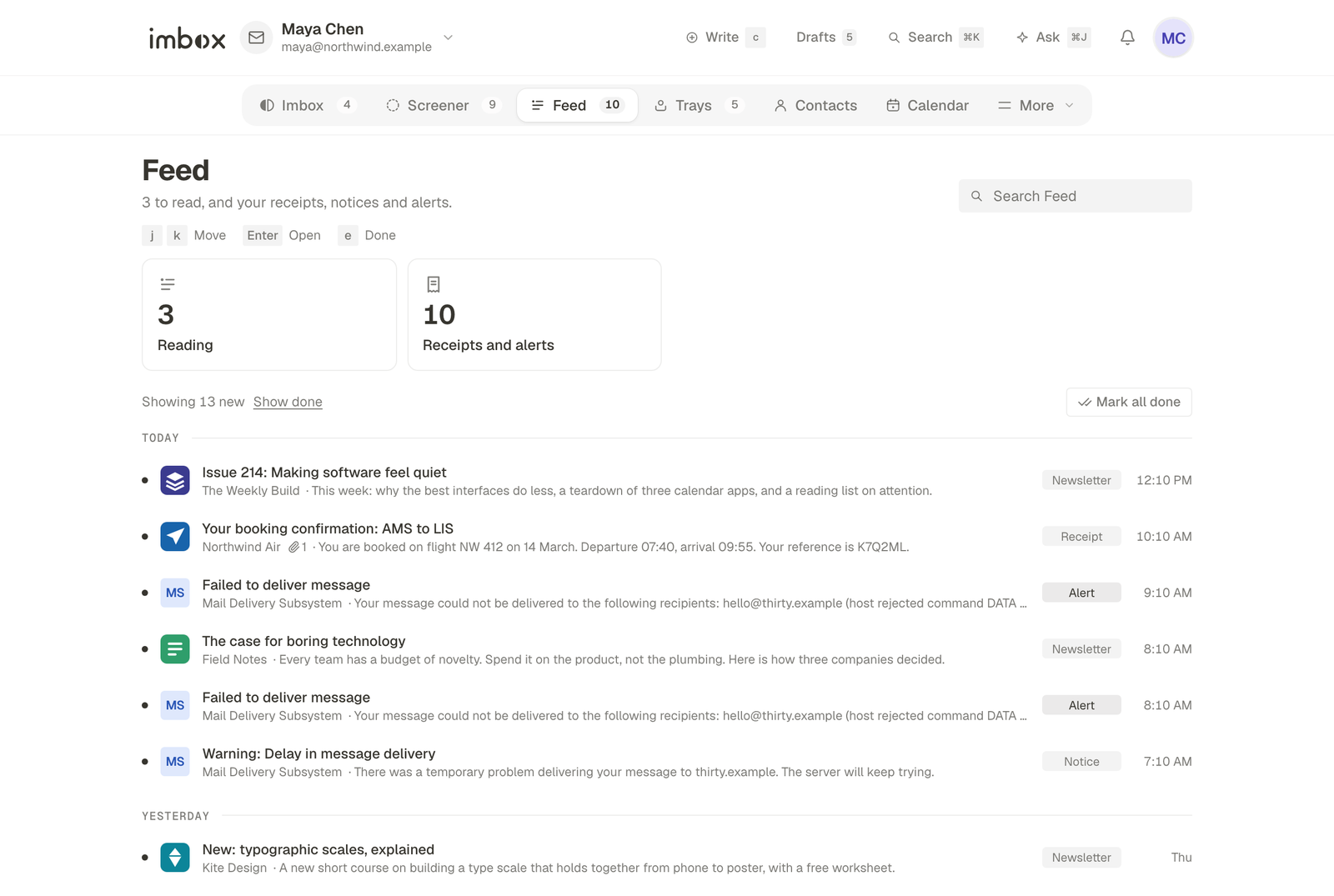
The Feed
Open Feed for the newsletters and notices. Four cards sit at the top, each a count you can click to narrow the page:
- Reading: newsletters and articles.
- Receipts and alerts: shop confirmations, bank notices, tracking codes.
- Needs a response: a receipt or notice that asks something of you, such as a payment due or a code that expires. It appears only when there is one. A newsletter that says "expires soon" is not counted.
Below the cards, mail is grouped by day. A line shows how many you are looking at, and Show done includes what you have already finished.
- Press
eto finish the card you are on, andjandkto move. - Mark all done clears everything new in the current view, after a confirmation that names the number.
- Search at the top of the page searches the whole Feed, not only what has loaded.
If you have set up the AI assistant, a short digest of what is new sits at the top of the Feed, folded so it does not push the list down. It only runs when you have connected a model.
Receipts stay on the page after you read them, so you can find them again. Newsletters leave once done.
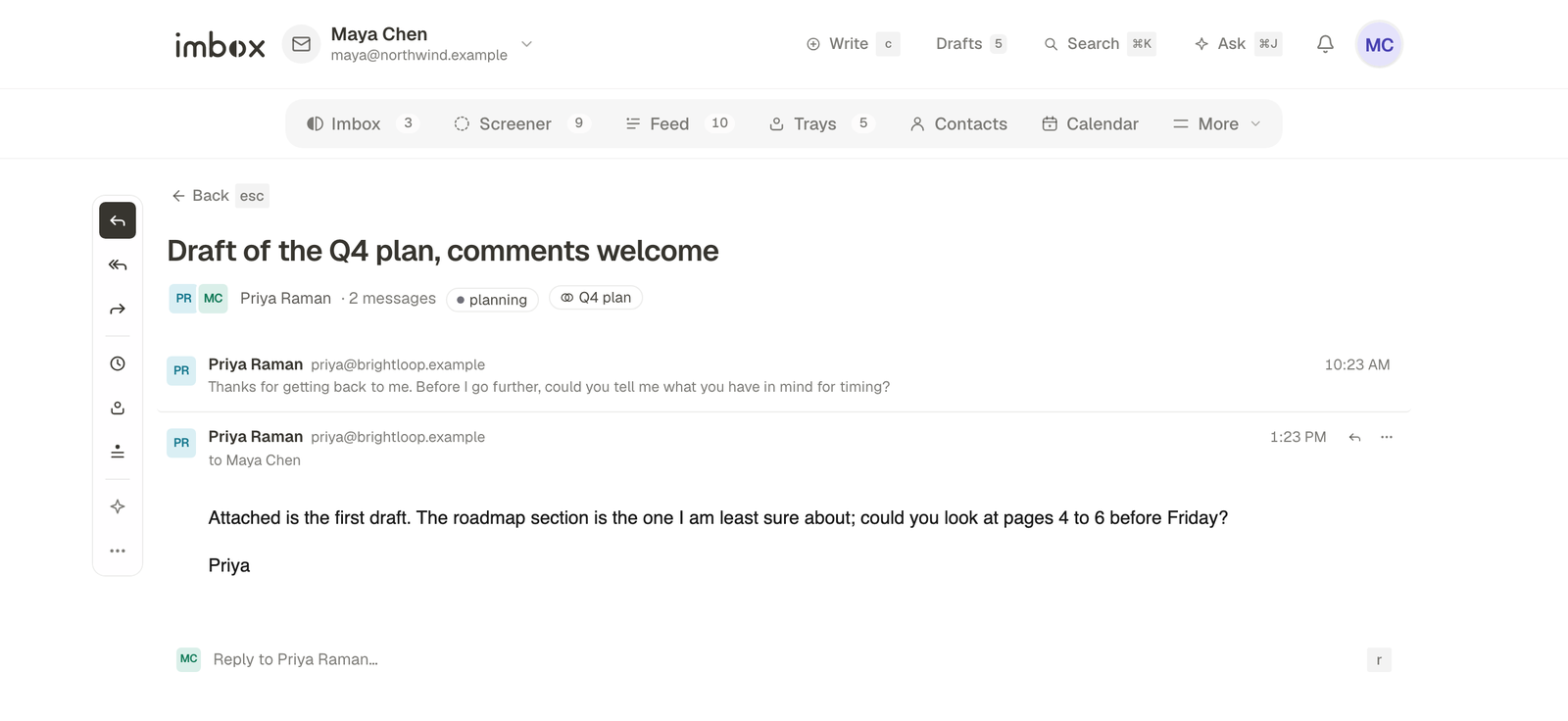
Delivery failures in a thread
When a message you sent bounces, the notice from the mail system lands in the same thread. A line above the messages counts them, for example "2 delivery failure notices", with Hide next to it. Hide them and the thread shows only the real conversation; Show brings them back. The choice is kept on that device and applies to every thread, on desktop and phone.
A thread that is only failure notices keeps showing them, so it is never empty.
Choosing a different home for a sender
A sender's destination is not fixed. To move one, open them in Contacts and change where their mail goes. New mail follows the change from then on.
Next
- Trays: messages you are not ready to finish.
- Search and shortcuts: move through mail with the keyboard.