

A workflow is a rule you write once. When something happens and the mail matches, imbox does the steps for you. It uses no AI, so it does the same thing every time. For jobs that need judgment, use an agent.
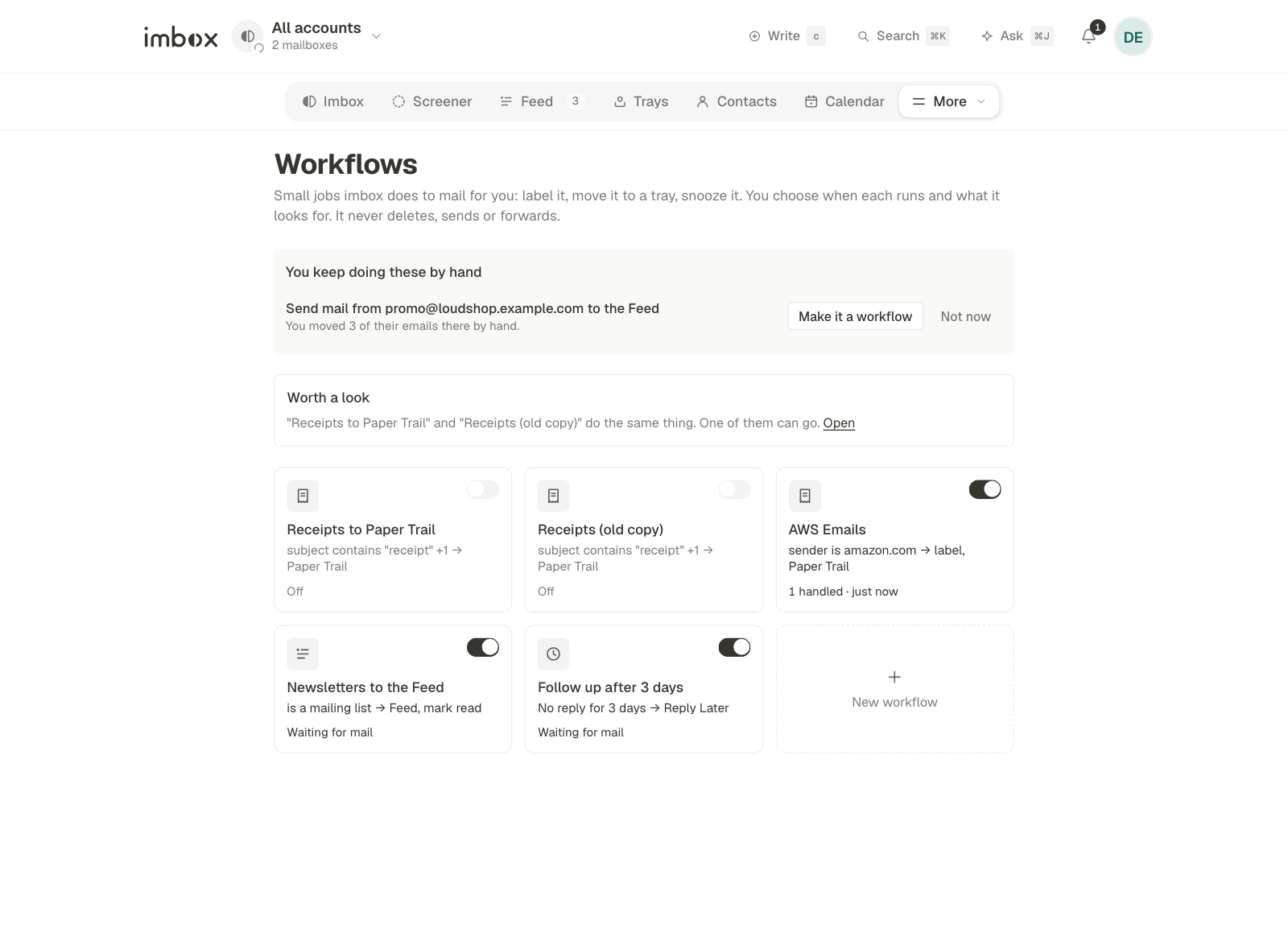
Workflows sit in the Library part of the menu, next to Labels and Collections. Each one is a tile with a switch, so you can turn it on or off without opening it. Open a tile to change its steps, test it on an email, see its history, or delete it.
What a workflow is made of
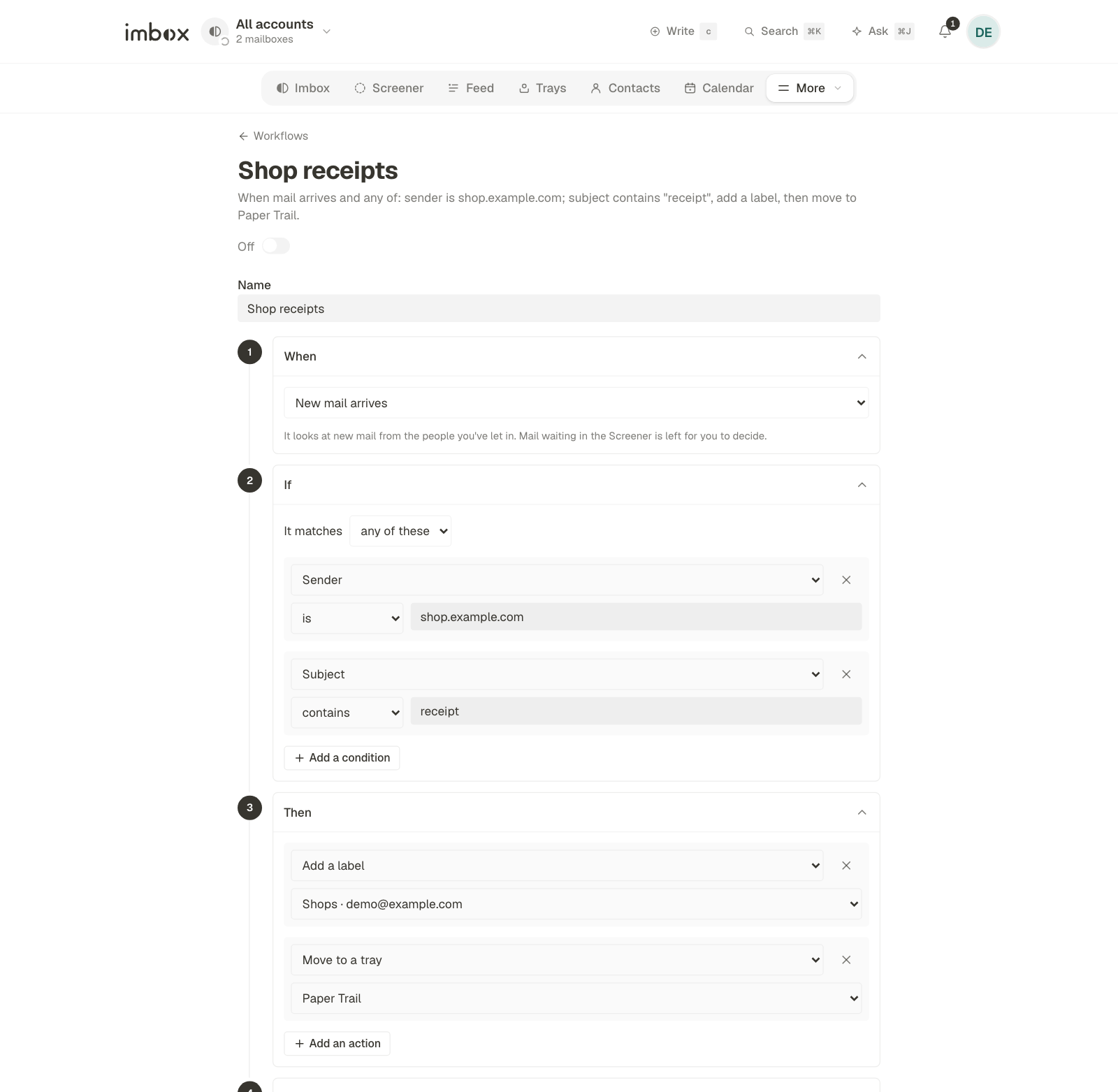
Every workflow has four steps, and the editor shows them in order.
- When. New mail arrives, or a thread you wrote has had no reply for a number of days.
- If. What the mail looks like. Sender, who it was sent to, subject, the text of the email, whether it has an attachment, whether it is a mailing list, and which tray it is in. You choose whether all of the conditions must match or any of them.
- Then. What to do, in order, up to five steps: add a label, move to the Imbox, Feed or Paper Trail, mark as read, set aside, add to Reply Later, snooze, or add to a collection.
- Where and how much. Which mailboxes it works on, and the most conversations it may handle per day.
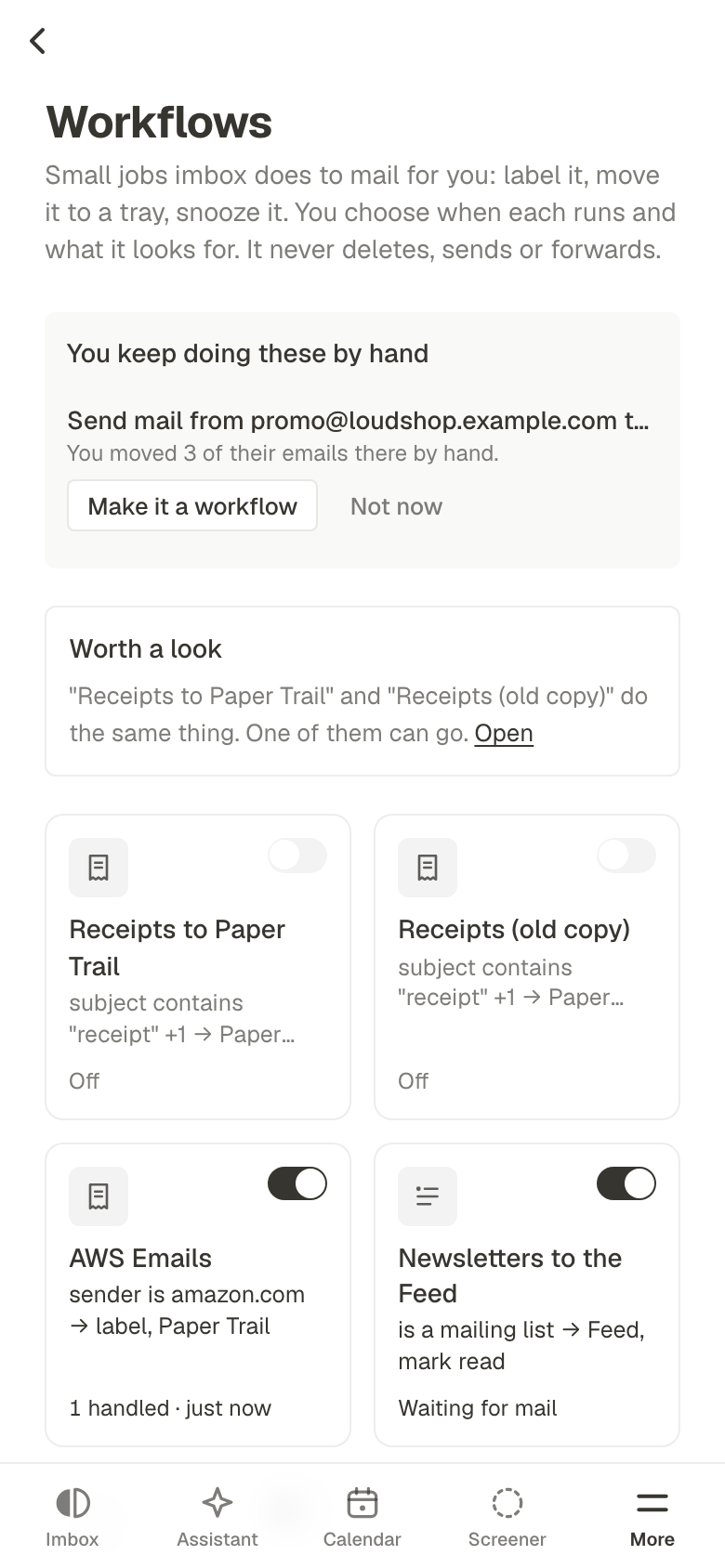
On a phone the steps fold to one line each and open when you tap them. Everything you can do on a computer you can do on a phone.
Make one
- Open Workflows and choose the New workflow tile. It opens a page that asks for a name and nothing else. Or pick a template, such as newsletters to the Feed.
- The workflow opens on its own page. Fill in the steps there and choose Save changes.
- Choose Check my latest mail. It shows which conversations from your recent mail would match. Nothing is changed.
- Switch it on at the top of the page. A workflow can be saved half-finished while it is off, but it has to be complete before it can be switched on.
You can also open any email, choose More, then Create a workflow. It opens a new workflow for that sender, ready to change.
Where the AI helps
Workflows run on plain rules, so they do the same thing every time. The AI is used in two places, and only if you have set up an AI provider.
- Ask the assistant to make one. In the Ask bar, say what you want, such as "make a workflow that sends anything from shops that looks like a receipt to Paper Trail and marks it read". The assistant shows the steps on a card. Choose Review and save, and the workflow opens on its own page, switched off, so you can read it and switch it on when it looks right. You can talk it through first ("only for my work mailbox"), or attach an email with
@and ask for a workflow for mail like it. On the New workflow page, Describe it in Ask opens the bar for you. The assistant never saves or switches on a workflow itself. It can only use your real labels and collections, and it can't make a step that deletes or sends. - An "AI judges that" condition. In the If step, add a condition such as "is a receipt" or "needs a reply from me". It is asked last, only about mail that the other conditions already let through, and at most 10 times a minute. It answers yes or no. It can't change what the workflow does, and the email it reads is treated as untrusted text. A mail the AI can't judge doesn't match. The check on your recent mail leaves this condition out, so its count can be higher than the real one. Each question is listed on the AI Usage page under Workflows.
Help that needs no AI
- Suggestions. If you move three or more emails from the same sender to the Feed or Paper Trail by hand, the Workflows page offers to make that a workflow. Not now hides a suggestion on that device.
- Checkup. The Workflows page points out two workflows that do the same thing, two that move the same mail to different trays, a step that uses a label or collection that was deleted, a workflow that has been on for two weeks and never matched, and one that keeps failing a step.
- Test it on an email. On a workflow's page, pick one of your recent conversations. It says whether the workflow would act on it and which conditions hold, and it names anything in the way, such as the Screener or a different mailbox.
What it will and won't do
- A workflow starts with the next email after you switch it on. It never works through mail that is already there.
- It leaves mail in the Screener alone. Deciding who gets in stays with you.
- It handles each email once, and stops at its daily limit. What is left waits for the next day.
- A label or collection belongs to one mailbox, so a workflow that uses one works on that mailbox only.
- It can't delete, send, forward or reply. Those are not steps.
- Mail older than a day is skipped, so a long outage doesn't suddenly move old mail.
- It runs in the once-a-minute background pass, so a rule acts within about a minute of new mail arriving.
See what it did
Choose History on a workflow to see each conversation it handled, what it did, and anything it could not do. The same events appear in the Activity page as actions by "rules".
Related
- Agents for jobs that need judgment, such as writing replies.
- Labels, collections and clips for the things a workflow can file mail into.
- Trays for Reply Later, Set Aside and Bubble Up.